How Do I Track Phone Calls or Email Clicks as Conversions? A Practical Guide for Business Owners
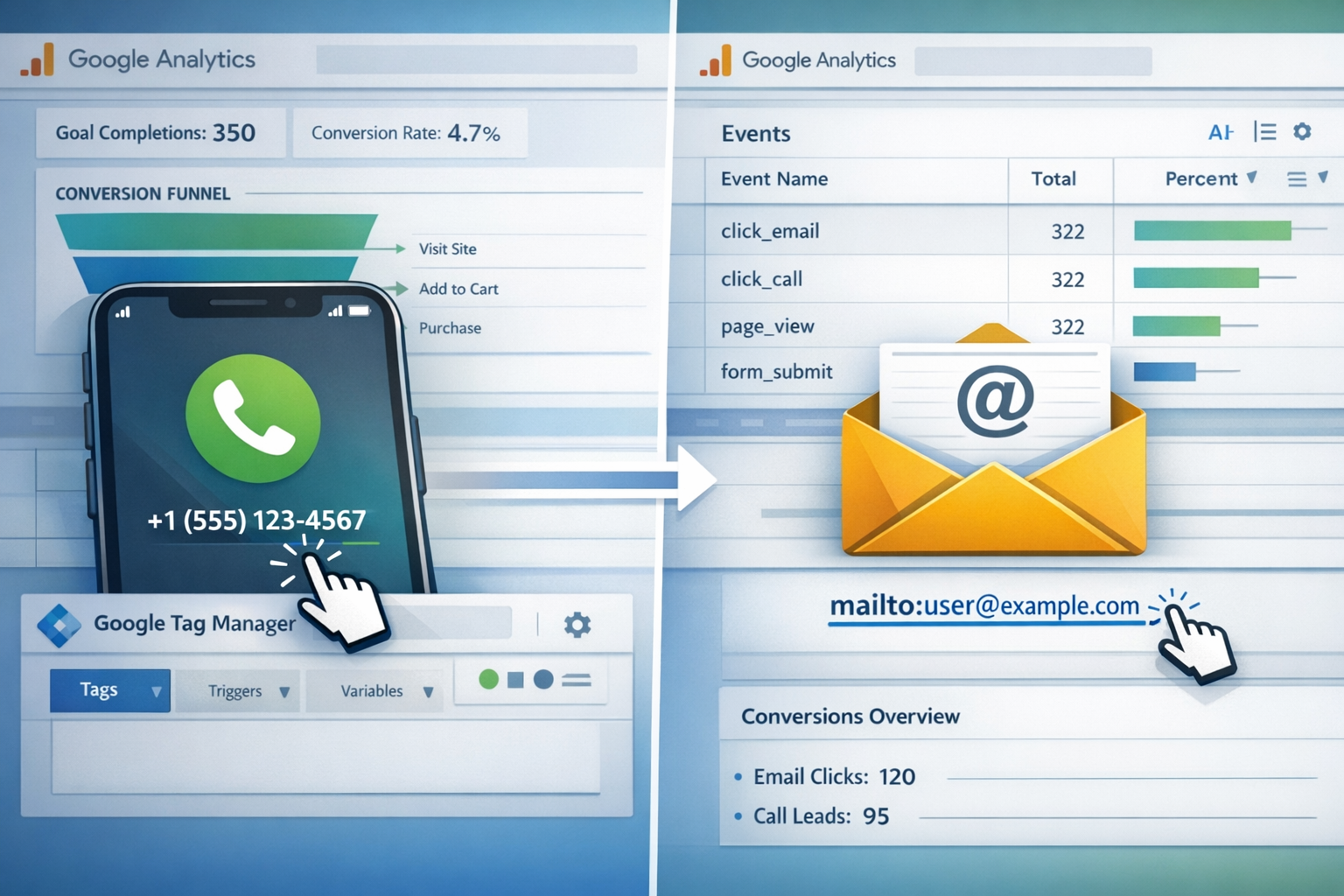
Most business owners know when someone fills out a form on their website. That's easy to track.
But what happens when someone clicks your phone number or email address instead?
Those actions disappear into a black hole. No data. No visibility. No way to know if your ads or marketing efforts are actually driving calls and emails.
The good news: you can track phone calls or email clicks as conversions. It just requires a specific setup across a few platforms.
This guide walks through exactly how to do it, step by step.
Key Takeaways
- Phone and email clicks require special tracking because they don't load new pages like form submissions do
- You'll need access to three platforms: Google Tag Manager, Google Analytics, and Google Ads to complete the full setup
- The tracking only captures clicks, not whether someone actually completed the call or sent the email
- Separate tracking setups are required for phone (tel:) links and email (mailto:) links
- Consider excluding these from automated bidding since they measure intent rather than completed actions
Why Standard Conversion Tracking Doesn't Work for Phone and Email Links
Standard website tracking watches for page loads.
Someone fills out a form. They land on a "thank you" page. That page load triggers your conversion tracking.
Simple.
But phone and email links work differently.
When someone clicks a phone number, their phone app opens. When they click an email address, their email client launches. Neither action loads a new page on your website.
No page load means no standard conversion tracking.
That's the problem.
To track phone calls or email clicks as conversions, you need to track the click itself rather than a destination page[1].
This requires a different approach using event-based tracking.
Understanding the Three-Platform Setup
Here's what makes this slightly complicated.
You need three different platforms working together:
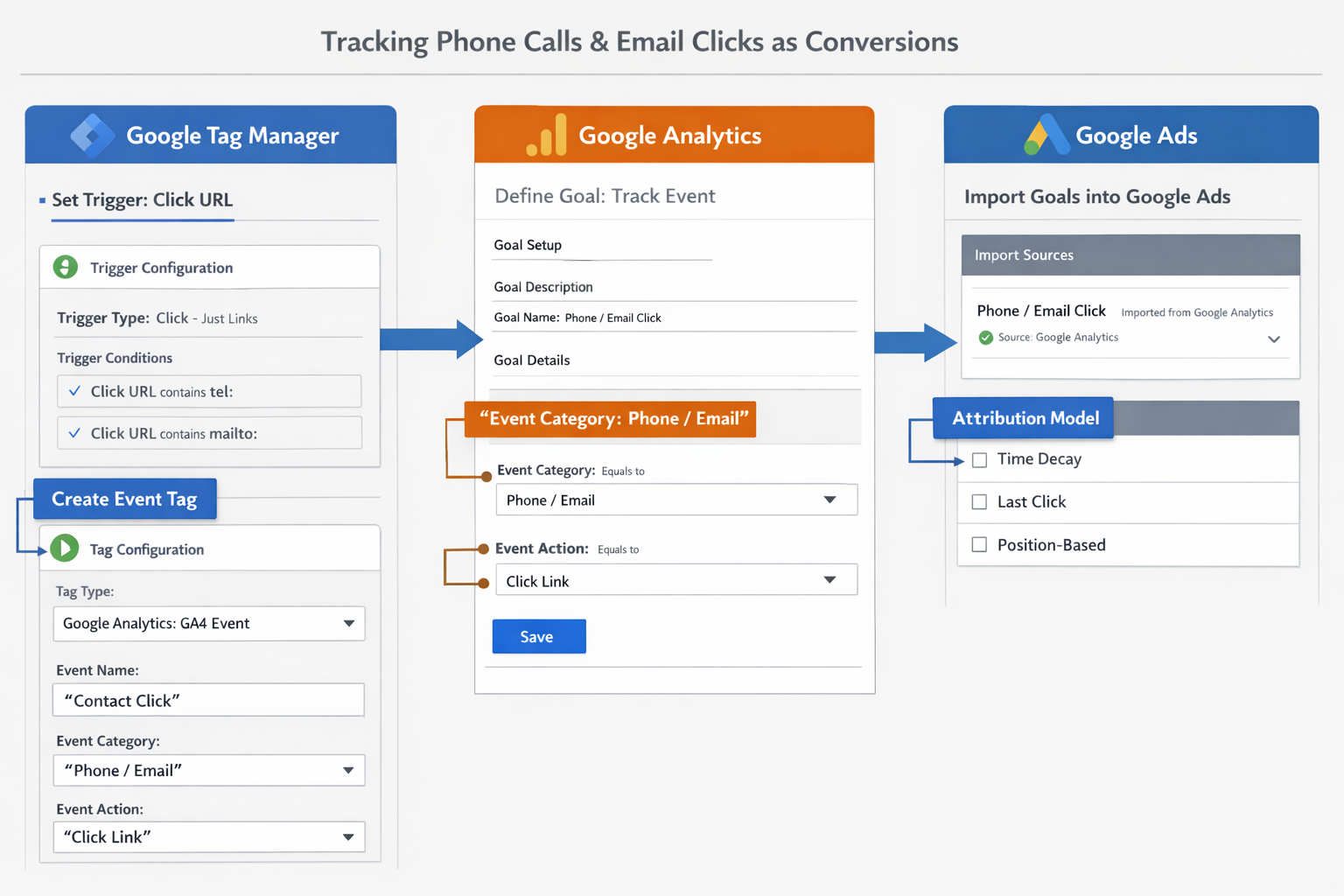
- Google Tag Manager - captures the click event
- Google Analytics - records the event as a goal
- Google Ads - imports the goal as a conversion
Each platform has a specific role[1].
Think of it like a relay race. Tag Manager catches the click and passes it to Analytics. Analytics validates it as a goal and passes it to Google Ads. Google Ads counts it as a conversion.
You need admin or edit access to all three platforms.
If you don't have access, get it before starting. Otherwise, you'll hit a wall halfway through.
How to Track Phone Calls or Email Clicks as Conversions: Step-by-Step Setup
The setup process has three main stages.
Let's walk through each one.
Stage 1: Configure Google Tag Manager
First, you'll set up the click tracking in Google Tag Manager.
This involves creating a trigger and a tag.
Create the Click Trigger:
Navigate to your GTM container. Go to Triggers and create a new trigger.
Select "Click - All Elements" as your trigger type.
Here's the critical part: you'll use "Click URL" as your variable, not "Page URL"[1].
For phone tracking, set the trigger to fire when Click URL contains "tel:". For email tracking, use "mailto:" instead.
This tells Tag Manager to watch for clicks on those specific link types.
Create the Event Tag:
Now create a new tag in Google Tag Manager.
Choose "Google Analytics: Universal Analytics" or "GA4 Event" depending on your Analytics setup.
Set your tracking ID.
For the event parameters:
- Event Category: Something like "Contact Click"
- Event Action: "Phone Click" or "Email Click"
- Event Label: You can use the click URL variable here to capture the actual number or email address
Name these clearly. You'll need to reference them in Analytics[1].
Attach the trigger you just created.
Save everything.
Test Your Setup:
Use GTM's Preview mode to test.
Click a phone or email link on your site. Check that the tag fires correctly in the preview panel.
If it doesn't fire, review your trigger conditions.
Stage 2: Create Goals in Google Analytics
Once Tag Manager is sending the event, set up Analytics to recognize it as a goal.
Go to your Analytics dashboard (or the Admin section if you're using Universal Analytics).
Navigate to Goals (UA) or Conversions (GA4).
Create a new goal.
For Universal Analytics:
- Goal Type: Custom
- Goal Details: Event
- Event Conditions: Match the category and action you set in GTM
For GA4:
Mark the event as a conversion in the Events section.
Save the goal.
Test in Real-Time:
Go to Real-time > Conversions in Analytics.
Click a phone or email link on your site.
Watch for the conversion to appear in real-time.
This confirms the data is flowing from Tag Manager to Analytics correctly[1].
If you don't see it, double-check your event parameters match exactly between GTM and Analytics.
Stage 3: Import Conversions to Google Ads
The final step connects Analytics to Google Ads.
In Google Ads, navigate to Tools & Settings > Conversions.
Click the plus button to create a new conversion action.
Select "Import" and choose Google Analytics as your source.
You'll see a list of goals from Analytics. Select the phone or email click goal you just created.
Configure your conversion settings:
- Value: Assign an estimated value if you know the worth of a phone call or email
- Count: Choose "One" to avoid counting multiple clicks from the same person
- Attribution model: Select what makes sense for your business
Save the conversion action[1].
Important Consideration:
This tracking captures clicks, not completed actions.
Someone might click your phone number and not actually call. They might click your email and close their email client without sending anything.
The system doesn't know the difference[1].
For this reason, many businesses exclude these conversions from their primary conversion column when using automated bidding strategies. Instead, they monitor them in the "all conversions" column.
This prevents your automated bidding from optimizing toward clicks that may not result in actual contact.
Alternative: Direct Phone Call Tracking in Google Ads
Google Ads offers a different approach for phone calls.
You can set up phone call lead conversion actions directly within Google Ads without using Tag Manager or Analytics[3].
This method tracks calls that originate from:
- Call assets in your ads
- Call-only ad campaigns
- Click-to-call extensions
How to Set It Up:
In Google Ads, go to Goals > Conversions > Summary > Create conversion action[3].
Select "Phone calls" as your conversion category.
Choose "Calls from ads using call extensions or call-only ads."
Set your call length threshold. This is the minimum call duration you want to count as a conversion. For example, 60 seconds.
This filters out wrong numbers and immediate hang-ups.
Configure your conversion value and count settings.
Save the conversion action.
The Advantage:
This method actually tracks call duration, giving you better data quality than click tracking[4].
Google can verify that someone stayed on the phone for at least your minimum threshold.
The Limitation:
It only works for calls that originate directly from Google Ads call features.
If someone visits your website and clicks a phone number on your contact page, this method won't capture it.
For complete visibility, you might need both approaches: direct call tracking for ad-generated calls, and click tracking for website-generated calls.
Tracking Both Phone and Email: Separate Setups Required
If your website has both phone numbers and email addresses you want to track, you'll need to repeat the setup process.
Create separate triggers in Tag Manager:
- One trigger for "tel:" links
- One trigger for "mailto:" links
Create separate tags with distinct event names:
- One tag for phone clicks
- One tag for email clicks
Create separate goals in Analytics for each event type.
Import both goals to Google Ads as separate conversion actions[1].
This separation lets you see which contact method people prefer.
You might discover that phone calls convert better than emails, or vice versa. That insight can inform where you place these contact options on your site.
Common Tracking Mistakes to Avoid
Mistake 1: Using Page URL Instead of Click URL
The most common error is setting up triggers based on page URL rather than click URL.
Remember: phone and email links don't load new pages. You must use Click URL as your trigger variable[1].
Mistake 2: Mismatched Event Parameters
Your event category and action in Tag Manager must match exactly what you set up in Analytics.
Even a small typo breaks the connection.
"Phone Click" and "phone click" are different. Capitalization matters.
Mistake 3: Not Testing Each Stage
Test after each stage:
- Test in GTM Preview mode
- Test in Analytics Real-time
- Test in Google Ads after importing
Don't wait until the end to discover something isn't working.
Mistake 4: Counting Clicks as High-Value Conversions
Remember that clicks don't equal completed actions.
Don't assign the same value to a phone click that you'd assign to a completed sale.
Be conservative with your value estimates.
Enhanced Conversion Tracking for Phone Data
Google Ads supports Enhanced Conversions, which can include phone data.
Enhanced Conversions send hashed customer information (like phone numbers) to Google to improve conversion measurement accuracy[2].
This requires additional technical setup and compliance with privacy regulations.
You can verify Enhanced Conversion data using the "EC Assist" Chrome extension[2].
This advanced feature goes beyond basic click tracking, but it's worth knowing about if you want maximum tracking accuracy.
For most small to medium businesses, the basic click tracking method outlined above provides sufficient visibility without the additional complexity.
When to Exclude These Conversions from Automated Bidding
Here's a practical decision you'll need to make.
If you use automated bidding strategies in Google Ads (like Target CPA or Maximize Conversions), those strategies optimize based on your conversion data.
But remember: click tracking doesn't verify completed actions[1].
Someone clicking your phone number isn't the same as someone who called and became a customer.
If you include phone and email clicks in your primary conversions column, your automated bidding might optimize toward clicks rather than actual customers.
The Solution:
In Google Ads conversion settings, you can choose whether a conversion appears in the "Conversions" column or only in "All Conversions."
Consider excluding phone and email clicks from "Conversions" if you:
- Use automated bidding based on CPA targets
- Have other, more reliable conversion actions (like form submissions or purchases)
- Want your bidding to optimize toward completed actions rather than intent signals
Keep them in "All Conversions" so you can still monitor them.
This gives you visibility without affecting your automated bidding performance.
Measuring Success Beyond the Click
Click tracking gives you partial visibility.
But to truly understand if phone calls or email clicks as conversions are valuable, track what happens next.
Manual Tracking:
Ask new customers how they found you.
When someone calls, have your team note whether they mention finding you online.
When someone emails, track which emails turn into customers.
This manual data complements your digital tracking.
CRM Integration:
If you use a CRM, tag leads that came from phone calls or emails.
Track their progression through your sales funnel.
Calculate the actual conversion rate from click to customer.
This gives you the real value of these actions, not just the click count.
Call Tracking Services:
For businesses that rely heavily on phone calls, dedicated call tracking services offer more robust features than basic click tracking.
Services like CallRail or CallTrackingMetrics provide:
- Unique phone numbers for different marketing channels
- Call recording
- Call duration tracking
- Integration with Google Ads
These services cost money but provide much better data quality than click tracking alone.
Conclusion: Start Simple, Then Expand
Tracking phone calls or email clicks as conversions doesn't have to be overwhelming.
Start with the basic three-platform setup outlined above.
Get Tag Manager capturing clicks. Get Analytics recording them as goals. Get Google Ads importing them as conversions.
Test each stage as you go.
Once that's working, you can refine:
- Separate tracking for phone vs. email
- Exclude from automated bidding if needed
- Add manual tracking to measure actual outcomes
- Consider dedicated call tracking services if phone calls are critical to your business
The goal isn't perfect data. The goal is better visibility than you have now.
Even imperfect tracking beats no tracking at all.
Next Steps:
- Verify you have admin access to Google Tag Manager, Analytics, and Ads
- Choose whether to start with phone tracking or email tracking (or both)
- Set aside 30-60 minutes to work through the setup
- Test thoroughly at each stage
- Monitor your data for a week to ensure it's working correctly
For more guidance on implementing tracking and analytics for your business, visit our contact page or explore our dashboard to see how proper conversion tracking can transform your marketing visibility.
References
[1] Tracking Mailto And Tel Link Clicks As Conversions In Google Ads A Guide - https://www.impressiondigital.com/blog/tracking-mailto-and-tel-link-clicks-as-conversions-in-google-ads-a-guide/
[2] Watch - https://www.youtube.com/watch?v=YNvOZVP3xcE
[3] Watch - https://www.youtube.com/watch?v=-6B4rD7lMYo
[4] Google Ads Playbook For 2026 - https://www.symphonicdigital.com/blog/google-ads-playbook-for-2026
SEO Meta Title and Description
Meta Title: Track Phone Calls or Email Clicks as Conversions (2026 Guide)
Meta Description: Learn how to track phone calls or email clicks as conversions using Google Tag Manager, Analytics, and Ads. Step-by-step setup for business owners.
Other frequently asked questions
- How Do I Check Which Pages People Spend the Most Time On
- How Do I Track Sales From My Google Ads Campaigns
- Will AI Take Over Data Analytics
- How Do I Track Phone Calls or Email Clicks as Conversions
- How Do I Track How Many People Fill Out My Contact Form
- How Do I Track How Many People Watch a Video or Download a Brochure
- How Do I Know Which Pages Lead to the Most Conversions
- How Do I See Where Most People Drop Off During Checkout
- How Do I See Where My Website Visitors Are Coming From
- How Do I See Which Blog Posts Bring Me the Most Visitors
- How Do I Check if My Homepage Is Actually Performing Well
- How Do I Find Out How Long It Takes Someone to Become a Customer
- How Do I Find Out What Paths People Take Before They Buy or Sign Up
- How Do I Measure Which Traffic Source Brings the Most Paying Customers
- How Do I See if Discounts or Offers Increase Sales
- How to See What Visitors Do First When They Land on Your Site