{"content":["Detailed landscape format (1536x1024) editorial image showing a modern analytics dashboard on a large desktop monitor displaying exit page metrics and bounce rate data, with highlighted sections showing page names and exit percentages in clean data tables, professional website analytics interface with clear navigation paths and user flow diagrams, exit indicators marked with red highlights, business professional's hands on keyboard reviewing the data, natural office lighting, clean modern workspace, focus on actionable exit page analytics for How do I see which pages people leave my website on, realistic photography style with sharp details and professional color grading", "Detailed landscape format (1536x1024) editorial illustration showing a step-by-step visual guide to finding exit pages in Google Analytics 4 interface, split-screen composition with left side showing the GA4 navigation menu with Reports section highlighted, right side displaying the Pages and screens report with exit rate column clearly visible, cursor arrows pointing to key menu items and data columns, clean UI elements with annotations and callout boxes, modern flat design aesthetic with blue and white color scheme, professional tutorial style for How do I see which pages people leave my website on, includes sample website data and percentage metrics in organized columns"]
How Do I See Which Pages People Leave My Website On?
You've spent time building your website. You've written content, designed pages, and set up your navigation. But something isn't working. People are leaving.
The question isn't whether visitors exit your site. They all do eventually. The real question is where they're leaving, and whether those exits are costing you sales, leads, or engagement.
Understanding how to see which pages people leave your website on gives you the power to fix problems before they cost you more business. It's one of the most practical things you can do in 2026 to improve your website's performance.
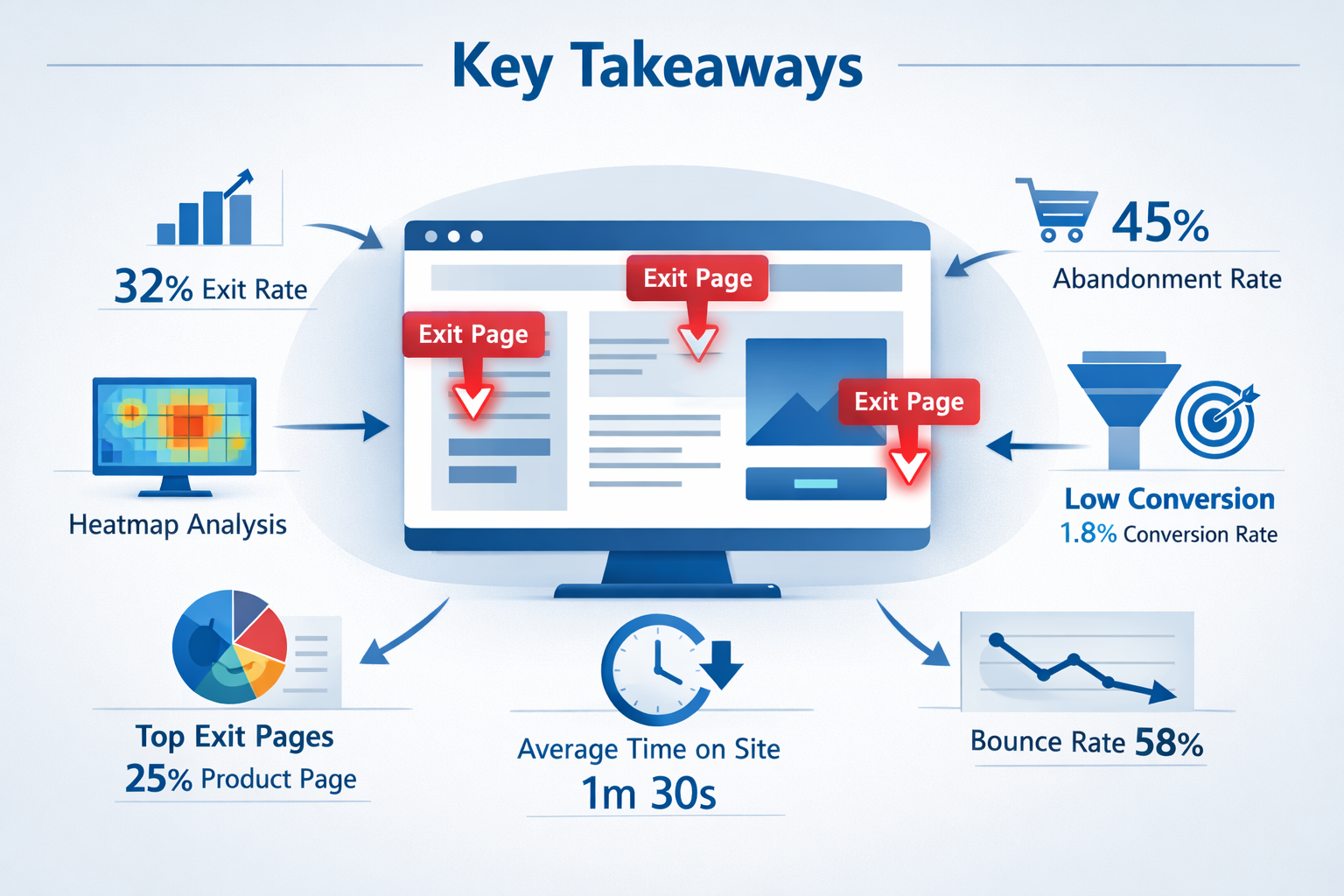
Key Takeaways
- Exit pages show where visitors leave your site, helping you identify problem areas that need attention
- Google Analytics 4 provides built-in exit page tracking through the Pages and screens report with exit rate metrics
- High exit rates aren't always bad—checkout confirmation pages and contact form thank-you pages should have high exits
- Compare exit rates to site averages to identify pages that are underperforming and driving visitors away
- Use exit page data alongside other metrics like time on page and conversion rates for complete insights
What Exit Pages Actually Tell You
An exit page is the last page someone views before leaving your website.
Every session ends somewhere. That's normal.
But when a particular page consistently shows up as an exit point, it's telling you something. Maybe the page answers the visitor's question completely. Maybe it confuses them. Maybe it frustrates them enough to close the tab.
The exit page itself doesn't tell you why people left. It just shows you where.
That's still valuable. Because once you know where people are leaving, you can investigate why.
Exit Rate vs Bounce Rate
These terms get confused constantly.
Bounce rate measures people who land on a page and leave without viewing anything else. They saw one page. That's it.
Exit rate measures how often a page is the last one in any session, regardless of how many pages someone viewed before that.
A page can have a low bounce rate but a high exit rate. That means people found it through navigation, not search, but still left from there.
Understanding this difference matters when you're trying to improve your site.
How Do I See Which Pages People Leave My Website On in Google Analytics 4?
Google Analytics 4 is the standard tool for this in 2026.
Here's how to find your exit pages:
- Log into your Google Analytics dashboard
- Click Reports in the left sidebar
- Navigate to Engagement → Pages and screens
- Look for the Exit rate column in the data table
If you don't see the exit rate column, click the pencil icon to customize the report. Add "Exit rate" as a metric.
The table will show you each page's URL and what percentage of sessions ended on that page.
Sort by exit rate to see which pages lose the most visitors.
Reading the Data Correctly
A high exit rate isn't automatically bad.
Your "Thank You" page after a form submission should have a high exit rate. People completed their goal. They're done.
Same with blog posts. Someone reads your article, gets their answer, and leaves. That's fine.
The pages to worry about are the ones in the middle of your conversion path. Product pages. Service descriptions. Pricing pages. Contact forms.
If people are leaving those pages at higher rates than your site average, you've found a problem worth fixing.
How to Identify Problem Exit Pages
Not every high-exit page needs your attention.
Focus on pages where you expected people to take another action.
Ask yourself:
- Is this page part of my sales or conversion funnel?
- Did I design this page to lead somewhere else?
- Should visitors naturally continue to another page from here?
If yes, and the exit rate is high, investigate.
Compare Against Benchmarks
Your site-wide average exit rate is your baseline.
In Google Analytics 4, you can see this in the same Pages and screens report. Look at the overall exit rate for all pages combined.
Any page significantly above that average deserves a closer look.
A page with a 75% exit rate on a site where the average is 45% is telling you something's wrong.
Look at Context
Check other metrics for the same page:
- Average time on page – Are people reading or bouncing quickly?
- Scroll depth – Do they see your whole page or just the top?
- Conversion rate – Are any visitors completing goals before leaving?
A high exit rate with a long time on page might mean your content is complete but doesn't encourage next steps.
A high exit rate with a short time on page suggests confusion, poor content, or a technical problem.
Common Reasons for High Exit Rates
Once you've identified which pages people leave your website on, understanding why helps you fix them.
Missing or Weak Calls to Action
People don't know what to do next.
Your page answered their question, but you didn't tell them where to go. No button. No link. No clear next step.
They close the tab because there's nothing pulling them forward.
Slow Page Speed
The page takes too long to load.
People leave before it even finishes rendering. You'll see this as a high exit rate combined with very short time on page.
Test your page speed. If it's over three seconds, you're losing people.
Confusing Navigation
Visitors can't find what they're looking for.
Your menu is unclear. Your internal links don't make sense. The page feels like a dead end.
They give up and leave.
Content Doesn't Match Intent
Someone clicked expecting one thing and got something else.
Maybe your page title promised a solution you didn't deliver. Maybe your meta description was misleading. Maybe the content is just off-topic.
When expectations don't match reality, people leave.
Technical Errors
Broken forms. Missing images. JavaScript errors.
Sometimes the page literally doesn't work. Check your browser console for errors on high-exit pages.
How to Reduce Exit Rates on Problem Pages
Knowing which pages people leave your website on is only useful if you act on it.
Add Clear Next Steps
Every page needs a purpose and a path forward.
Add a relevant call to action. Link to related content. Suggest the logical next page in your visitor's journey.
Make it obvious what they should do next.
Improve Page Content
If people are leaving, your content might not be meeting their needs.
Review the page with fresh eyes. Is it clear? Is it helpful? Does it answer the question they came with?
Rewrite sections that confuse or bore readers.
Fix Technical Issues
Run the page through Google PageSpeed Insights.
Fix slow loading times. Compress images. Remove unnecessary scripts.
Test forms to make sure they work. Check that all links go somewhere useful.
Strengthen Internal Linking
Guide people naturally to related content.
Add contextual links within your text. Include a "related articles" section. Suggest next steps based on what they just read.
The easier you make it to continue, the more people will.
Test Different Layouts
Sometimes the design itself is the problem.
Try moving your call to action higher on the page. Test different button colors. Experiment with different headlines.
Small changes can make a big difference in exit rates.
Beyond Google Analytics: Other Tools

Google Analytics 4 shows you which pages people leave your website on, but other tools add context.
Hotjar and Microsoft Clarity show you recordings of actual user sessions. You can watch people navigate to your high-exit pages and see exactly where they get stuck.
Google Search Console tells you which search queries bring people to those pages. If the search intent doesn't match your content, that explains the exits.
Your own analytics platform might offer additional insights. If you're looking for a simpler way to track this data, consider exploring analytics solutions that present exit page information more clearly.
Setting Up Ongoing Monitoring
Don't just check exit pages once and forget about them.
Make it a monthly habit.
Create a simple spreadsheet. Track your top 10 exit pages each month. Note the exit rate for each.
Watch for changes. A page that suddenly jumps in exit rate might have a new technical problem or broken link.
Set up custom reports in Google Analytics 4 that show exit rates for your most important pages. Check them regularly.
The goal isn't to eliminate all exits. That's impossible.
The goal is to catch problems early and fix them before they cost you too much business.
What to Do With This Information
Knowing how to see which pages people leave your website on is practical knowledge.
It's not theoretical. It's not complicated.
You log into analytics. You find the exit rate column. You identify pages with unusually high exits. You investigate why. You fix the problems.
That's it.
Most business owners never look at this data. They wonder why their website doesn't convert, but they never check where people are actually leaving.
You're different now. You know where to look.
Start with your most important pages. The ones that should lead to sales or leads. Check their exit rates first.
If you need help setting up your analytics properly, get in touch with someone who can walk you through it.
Conclusion
Understanding which pages people leave your website on gives you a clear path to improvement.
You don't need to guess anymore. The data shows you exactly where visitors exit. From there, you can investigate why and make changes that keep more people engaged.
Start today. Log into Google Analytics 4. Find your Pages and screens report. Sort by exit rate. Pick your top three problem pages and commit to improving them this month.
Fix one thing at a time. Test the results. Track whether your changes reduce the exit rate.
This isn't about perfection. It's about progress.
Every exit rate you reduce means more visitors seeing more of your site. More opportunities to build trust. More chances to convert browsers into customers.
The data is already there. You just need to look at it and act.
Ready to take control of your website analytics? Sign up for tools that make tracking visitor behavior simple and actionable.
Other frequently asked questions
- How Do I Check Which Pages People Spend the Most Time On
- How Do I Track Sales From My Google Ads Campaigns
- Will AI Take Over Data Analytics
- How Do I Track Phone Calls or Email Clicks as Conversions
- How Do I Track How Many People Fill Out My Contact Form
- How Do I Track How Many People Watch a Video or Download a Brochure
- How Do I Know Which Pages Lead to the Most Conversions
- How Do I See Where Most People Drop Off During Checkout
- How Do I See Where My Website Visitors Are Coming From
- How Do I See Which Blog Posts Bring Me the Most Visitors
- How Do I Check if My Homepage Is Actually Performing Well
- How Do I Find Out How Long It Takes Someone to Become a Customer
- How Do I Find Out What Paths People Take Before They Buy or Sign Up
- How Do I Measure Which Traffic Source Brings the Most Paying Customers
- How Do I See if Discounts or Offers Increase Sales
- How to See What Visitors Do First When They Land on Your Site