How Do I See If My Organic Traffic from Google Is Growing?
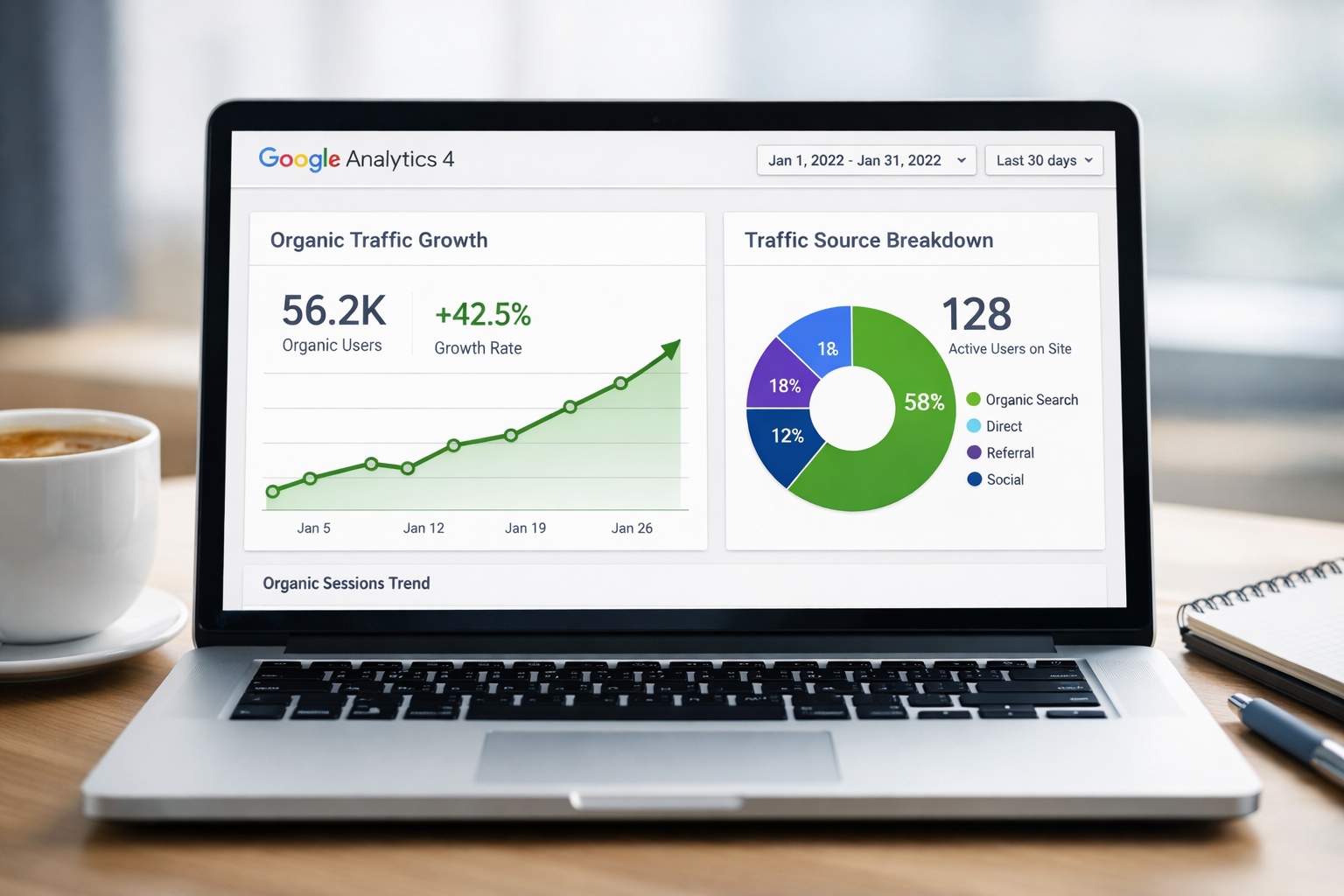
You've been working on your website. Publishing content. Trying to rank. Maybe you've even hired someone to help.
But here's the question that keeps coming up: is it actually working?
Understanding how to see if your organic traffic from Google is growing isn't just about vanity metrics. It's about knowing whether your investment of time and money is paying off. Without this clarity, you're flying blind.
The good news? Checking your Google traffic growth is simpler than most people think. You just need to know where to look and what actually matters.
Key Takeaways
- Google Analytics 4 and Google Search Console are your two essential tools for tracking organic traffic growth from Google
- Compare time periods consistently (month-over-month or year-over-year) to spot real growth trends
- Focus on organic search traffic specifically, not total website visits, to measure Google performance
- Look beyond vanity metrics like total sessions and examine user engagement and conversion patterns
- Set up your tracking correctly from day one to avoid data gaps that make growth measurement impossible
Understanding Organic Traffic from Google
Organic traffic means visitors who find your website through unpaid search results on Google.
They typed something into Google. Your page appeared. They clicked.
No ads. No paid promotion. Just your content matching what someone was looking for.
This matters because organic traffic is often the most valuable traffic you can get. These people are actively searching for what you offer. They have intent. They're not just scrolling past an ad.
The difference between organic and other traffic:
- Organic: Unpaid clicks from search engines
- Paid: Clicks from Google Ads or other paid campaigns
- Direct: People typing your URL directly
- Referral: Clicks from other websites
- Social: Visits from social media platforms
When you're trying to see if your organic traffic from Google is growing, you need to isolate this specific channel. Otherwise, you might think your SEO is working when really you just ran a successful Facebook campaign.
The Two Tools You Actually Need
Forget the complicated analytics suites and expensive dashboards.
Two free tools tell you everything you need to know.
Google Analytics 4 (GA4)
This is where you see what happens after people arrive at your website.
GA4 tracks every visitor, where they came from, what pages they viewed, and whether they converted into customers. For tracking organic growth, you'll use the Acquisition reports to filter specifically for organic search traffic.
The interface changed significantly from Universal Analytics. If you're still using the old version, you're looking at dead data. GA4 is the current standard in 2026.
Set it up once. Let it run. Check it regularly.
Google Search Console (GSC)
This tool shows you how your website performs in Google search results before people even click.
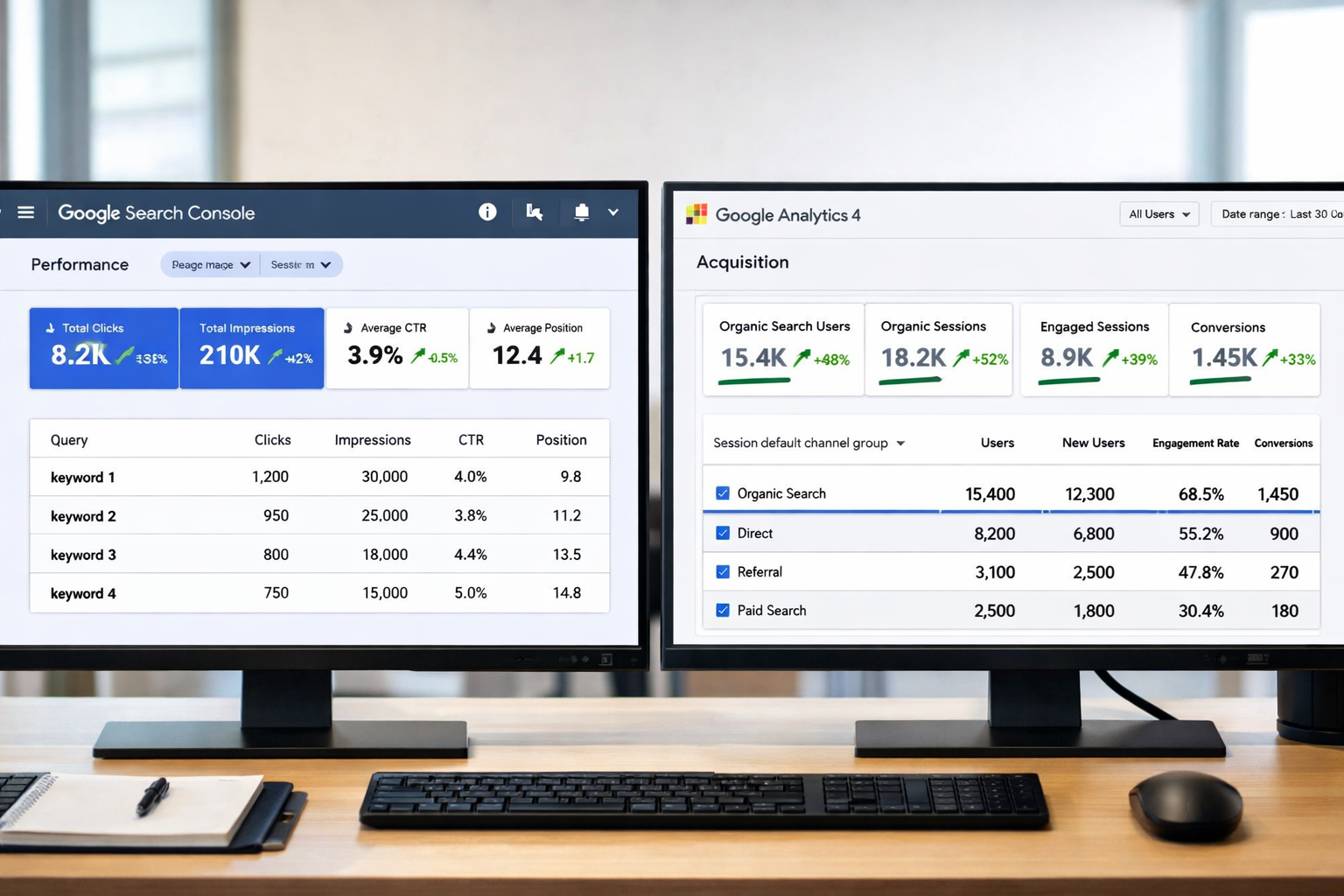
You'll see which search terms trigger your pages, how often you appear in results, your average position, and your click-through rate. This is the closest thing to looking directly at Google's view of your website.
Search Console is particularly valuable because it shows you potential that Analytics can't. You might be ranking on page two for valuable terms and not even know it.
Both tools are free. Both are essential. You can access your dashboard to monitor these metrics in one place if you're using a consolidated tracking system.
How to See If Your Organic Traffic from Google Is Growing in Google Analytics 4
Here's the step-by-step process.
Step 1: Open Google Analytics 4
Log into your GA4 property. If you haven't set this up yet, get started here to ensure you're tracking properly.
Step 2: Navigate to Reports
Click on "Reports" in the left sidebar, then select "Acquisition" and choose "Traffic acquisition."
Step 3: Filter for Organic Traffic
Look at the table showing different traffic sources. Find the row labeled "Organic Search" or filter the view to show only organic traffic from Google specifically.
Step 4: Set Your Date Range
Click the date selector in the top right. Choose a comparison period that makes sense:
- Last 30 days vs. previous 30 days for short-term trends
- This month vs. last month for monthly tracking
- This quarter vs. last quarter for seasonal businesses
- This year vs. last year to account for seasonal variations
Step 5: Look at the Numbers
You'll see metrics like:
- Users: How many people visited
- Sessions: How many visits occurred
- Engagement rate: How many sessions were engaged
- Conversions: How many completed your goals
The growth percentage appears automatically when you compare periods. A green number means growth. Red means decline.
But here's what most people miss: total numbers don't tell the whole story.
A 50% increase from 10 visitors to 15 isn't meaningful. A 10% increase from 1,000 to 1,100 is significant. Context matters.
How to Check Organic Growth in Google Search Console
Search Console gives you a different perspective on the same question.
Step 1: Open Google Search Console
Go to Search Console and select your property (your website).
Step 2: Click on Performance
This is in the left sidebar. The Performance report shows your search appearance data.
Step 3: Set Your Date Range
Click "Date" near the top and choose "Compare" to select two time periods. Use the same comparison logic as Analytics for consistency.
Step 4: Review the Key Metrics
You'll see four main numbers:
- Total clicks: How many people clicked from Google to your site
- Total impressions: How many times your pages appeared in search results
- Average CTR: Click-through rate (clicks divided by impressions)
- Average position: Where you typically rank in search results
Growth shows as a percentage change between your two selected periods.
Here's what to look for:
✅ Clicks increasing: More people are finding and clicking your content
✅ Impressions increasing: Google is showing your pages more often
✅ Position improving: You're ranking higher (lower number is better)
✅ CTR stable or increasing: Your titles and descriptions are compelling
If clicks are growing but impressions are flat, you're doing a better job of attracting clicks from the same visibility. If impressions are growing but clicks aren't, you might have a title/description problem.
What Growth Actually Looks Like (And What It Doesn't)
Growth isn't always a straight line up and to the right.
Normal patterns:
- Seasonal fluctuations (retail spikes in November/December)
- Weekly patterns (B2B sites often dip on weekends)
- Gradual increases over months, not days
- Occasional plateaus between growth phases
Red flags:
- Sudden massive spikes (often indicates tracking errors or bot traffic)
- Consistent decline over multiple months
- Traffic that doesn't match your content publishing schedule
- High traffic but zero engagement or conversions
Real organic growth from Google typically happens slowly. You publish content in March. It starts ranking in May. Traffic builds through the summer. By September, you're seeing consistent gains.
Anyone promising overnight results doesn't understand how Google works.
Common Mistakes When Tracking Organic Traffic Growth
Mistake #1: Not filtering out your own visits
If you visit your site 50 times a day checking updates, that's not organic growth. Set up filters to exclude internal traffic.
Mistake #2: Comparing incomparable periods
Don't compare December (holiday shopping season) to February (post-holiday slump) and panic about a decline. Compare December 2026 to December 2025.
Mistake #3: Ignoring data quality
If your tracking code isn't installed correctly, your data is worthless. Verify your setup is working before you start making decisions based on the numbers.
Mistake #4: Looking only at vanity metrics
Traffic is nice. Revenue is better. Make sure you're tracking what actually matters for your business, not just celebrating bigger numbers.
Mistake #5: Checking too frequently
SEO takes time. Checking daily creates anxiety without providing useful information. Weekly or monthly reviews make more sense for most businesses.
Setting Up Proper Tracking from the Start
If you're just getting started, here's what you need to do right now.
Install Google Analytics 4:
- Create a GA4 property in your Google Analytics account
- Add the tracking code to every page of your website
- Verify data is flowing in (check the real-time report)
- Set up conversion events for your key business goals
Verify Google Search Console:
- Add your website property to Search Console
- Verify ownership (usually via DNS or HTML file upload)
- Submit your sitemap
- Wait 48 hours for data to start appearing
Create a baseline:
You can't measure growth without a starting point. The moment you install tracking is day zero. Everything that happened before is invisible.
This is why waiting to set up analytics is costly. Every day without tracking is a day of lost data you can never recover.
For help with proper setup and ongoing monitoring, explore the resources available through Opal44.
Beyond the Numbers: What to Do with Growth Data
Knowing your traffic is growing is step one.
Step two is understanding why and doing more of what works.
When traffic is growing:
- Identify which pages are driving the growth
- Look at which keywords are bringing new visitors
- Analyze what these successful pages have in common
- Create more content following the same pattern
- Double down on topics that resonate
When traffic is flat or declining:
- Check for technical issues (site speed, mobile problems, indexing errors)
- Review recent Google algorithm updates that might have affected you
- Analyze competitor content to see what they're doing differently
- Look for keyword cannibalization (multiple pages competing for the same terms)
- Consider refreshing or updating older content
The data tells you what's happening. Your job is to figure out why and respond accordingly.
How Often Should You Check Your Organic Traffic Growth?
Here's the honest answer: it depends on your situation.
Daily checking makes sense if:
- You're actively troubleshooting a traffic problem
- You just launched a major site redesign
- You're running time-sensitive campaigns
Weekly checking works for:
- Most small to medium businesses
- Sites publishing content regularly
- Anyone wanting to stay informed without obsessing
Monthly reviews are sufficient for:
- Established sites with stable traffic
- Businesses with limited resources
- Long-term SEO strategies focused on gradual growth
Quarterly deep dives help with:
- Strategic planning
- Budget allocation decisions
- Identifying long-term trends vs. short-term noise
The key is consistency. Pick a schedule and stick to it. Random checking when you "feel like it" creates anxiety and poor decision-making.
Conclusion: Taking Action on Your Traffic Growth
Understanding how to see if your organic traffic from Google is growing gives you control over your website's success.
You now know the two essential tools: Google Analytics 4 for visitor behavior and Google Search Console for search performance.
You understand how to compare time periods properly, what metrics actually matter, and what real growth looks like versus false signals.
Your next steps:
- Verify your tracking is installed correctly on both GA4 and Search Console
- Set a baseline by recording your current organic traffic numbers
- Choose a review schedule (weekly or monthly) and stick to it
- Document your findings so you can spot trends over time
- Take action based on what the data tells you
Growth doesn't happen by accident. It happens when you measure what matters, understand what's working, and consistently do more of it.
The tools are free. The data is available. The only question is whether you'll use it.
If you need help interpreting your data or setting up proper tracking, contact us for guidance tailored to your specific situation.
Start measuring today. Your future self will thank you for the clarity.
Other frequently asked questions
- How Do I Check Which Pages People Spend the Most Time On
- How Do I Track Sales From My Google Ads Campaigns
- Will AI Take Over Data Analytics
- How Do I Track Phone Calls or Email Clicks as Conversions
- How Do I Track How Many People Fill Out My Contact Form
- How Do I Track How Many People Watch a Video or Download a Brochure
- How Do I Know Which Pages Lead to the Most Conversions
- How Do I See Where Most People Drop Off During Checkout
- How Do I See Where My Website Visitors Are Coming From
- How Do I See Which Blog Posts Bring Me the Most Visitors
- How Do I Check if My Homepage Is Actually Performing Well
- How Do I Find Out How Long It Takes Someone to Become a Customer
- How Do I Find Out What Paths People Take Before They Buy or Sign Up
- How Do I Measure Which Traffic Source Brings the Most Paying Customers
- How Do I See if Discounts or Offers Increase Sales
- How to See What Visitors Do First When They Land on Your Site