How Do I Find Out Which Marketing Channels Bring Me the Most Visitors?
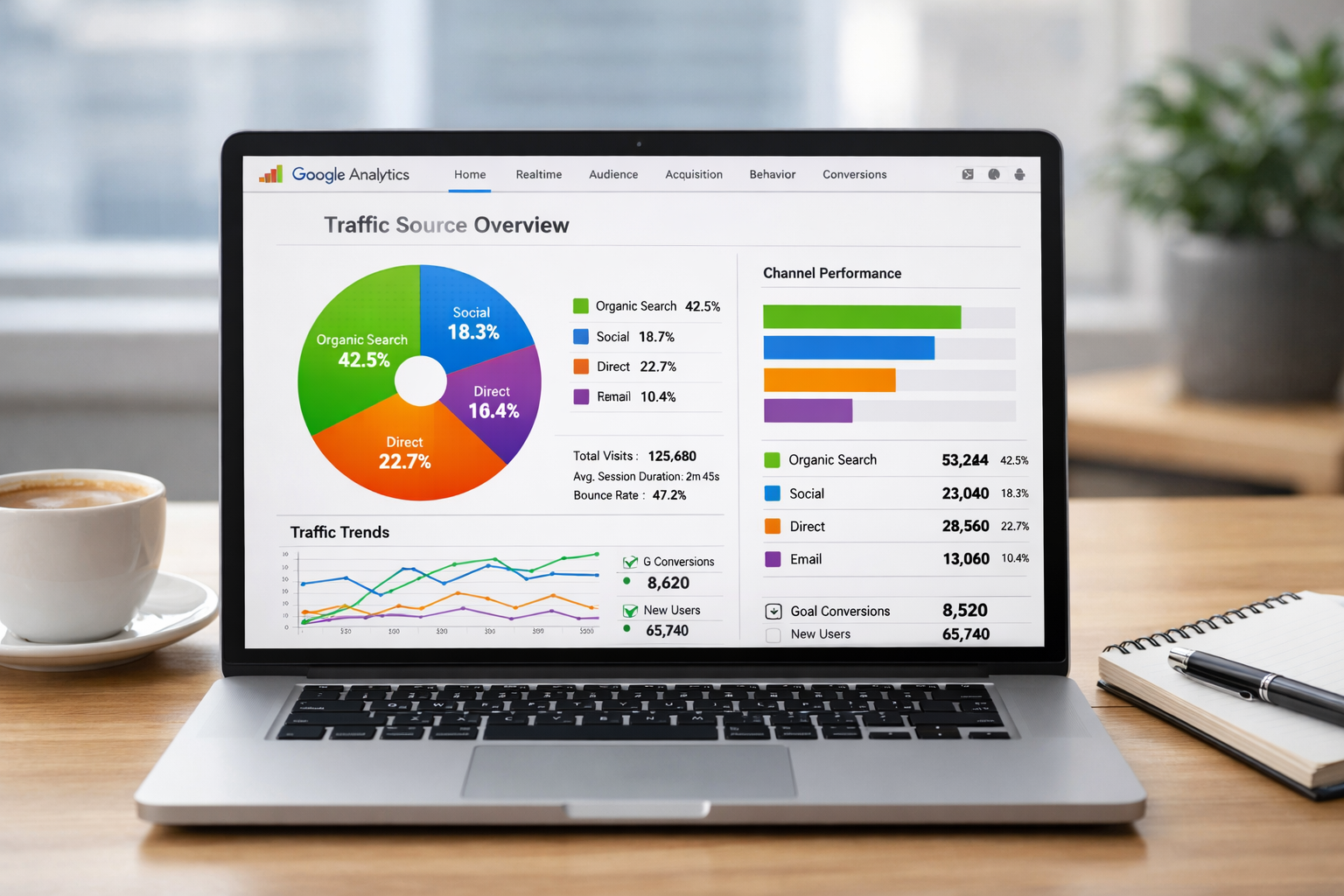
Every business owner faces the same frustrating question: where are my website visitors actually coming from?
You're running ads on Facebook. Posting on LinkedIn. Sending emails. Maybe even doing some SEO work. But when you look at your visitor numbers, it's just one big mystery. Which efforts are working? Which ones are wasting your time and money?
Understanding how to find out which marketing channels bring you the most visitors isn't just helpful—it's essential. Without this knowledge, you're flying blind. You might be doubling down on channels that barely move the needle while ignoring the ones that could transform your business.
Let's fix that.
Key Takeaways
- Google Analytics 4 is your primary tool for tracking where website visitors come from, showing traffic by channel in clear, actionable reports
- UTM parameters let you track specific campaigns so you know exactly which email, ad, or social post drove each visitor
- The "Acquisition" reports reveal your top channels including organic search, social media, email, paid ads, and direct traffic
- Regular monitoring helps you invest wisely by showing which channels deserve more budget and which ones to cut
- Simple setup takes less than an hour and provides insights that can immediately improve your marketing ROI
Understanding Traffic Sources vs. Marketing Channels
Before diving into the how, let's clarify what we're actually measuring.
A traffic source tells you the broad category. Think: search engines, social media, email.
A marketing channel is more specific. It's the exact platform or campaign. Like: Google organic search, Facebook ads, or your weekly newsletter.
When you're trying to find out which marketing channels bring you the most visitors, you need both views. The big picture and the details.
Most analytics tools group traffic into standard categories:
- Organic Search: People who found you through Google, Bing, or other search engines
- Direct: Visitors who typed your URL directly or came from bookmarks
- Referral: Traffic from links on other websites
- Social: Visitors from social media platforms
- Email: People who clicked links in your emails
- Paid Search: Clicks from your Google Ads or other search advertising
- Display: Banner ads and other visual advertising
Understanding these categories helps you speak the same language as your analytics tools.
Setting Up Google Analytics 4 to Track Your Channels
Google Analytics 4 (GA4) is the standard tool for tracking website visitors. It's free, powerful, and once set up, it works automatically.
If you haven't installed it yet, visit the dashboard to get started with proper analytics tracking.
Here's what GA4 does automatically:
It watches every visitor who lands on your site. It looks at where they came from. Then it categorizes that traffic source into the channels we mentioned above.
No manual work required for basic tracking.
But here's the thing: GA4 can only track what it can see. If someone clicks a link in your email, GA4 might just see it as "direct" traffic unless you tell it otherwise.
That's where UTM parameters come in.
Why UTM Parameters Matter for Accurate Channel Tracking
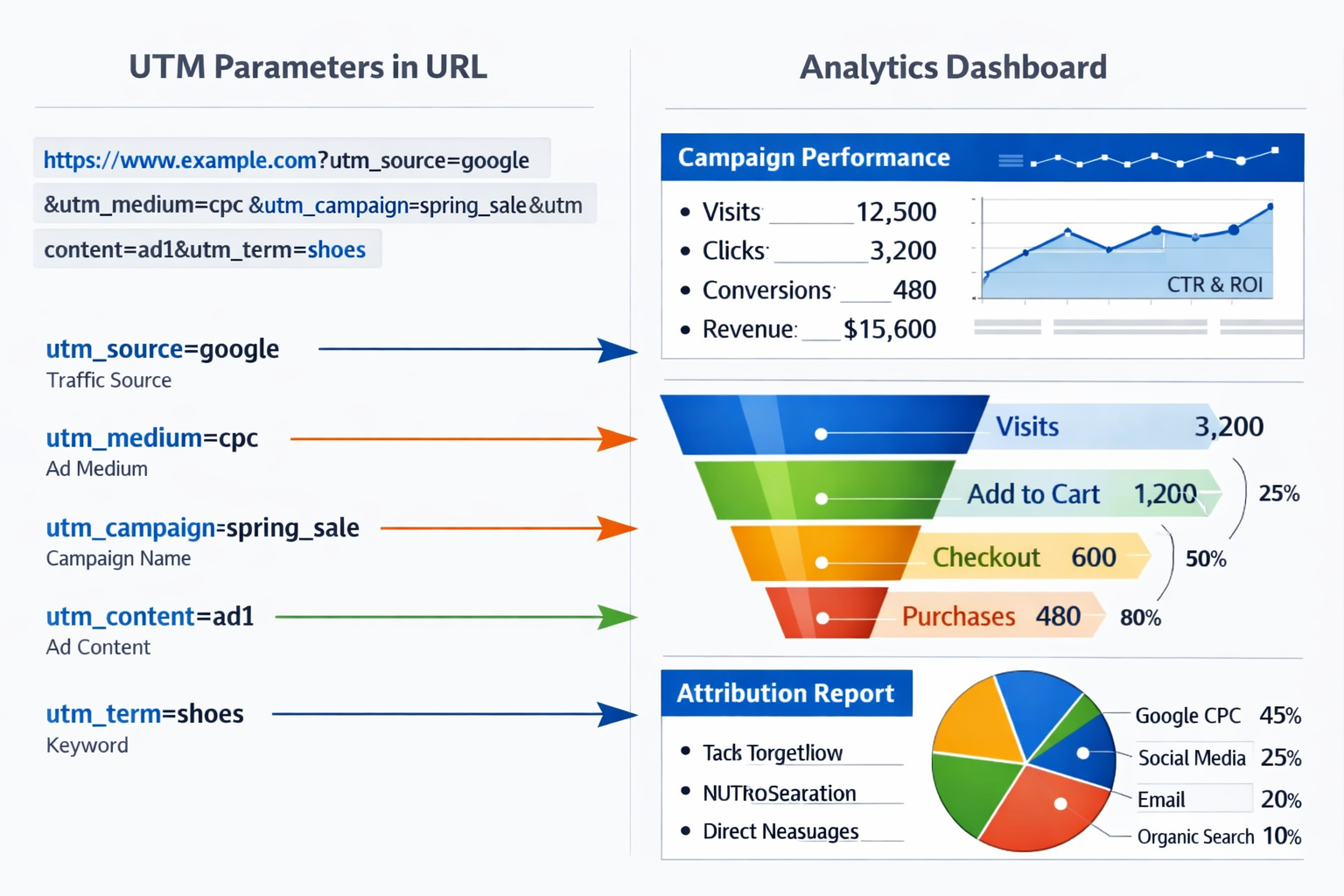
UTM parameters are tiny bits of code you add to your links. They tell GA4 exactly where that click came from.
A normal link looks like this:https://yourwebsite.com/blog-post
A link with UTM parameters looks like this:https://yourwebsite.com/blog-post?utm_source=newsletter&utm_medium=email&utm_campaign=march-promo
Those extra bits after the question mark? That's how you find out which marketing channels bring you the most visitors with precision.
The main UTM parameters are:
- utm_source: The platform (facebook, newsletter, google)
- utm_medium: The type of traffic (social, email, cpc)
- utm_campaign: The specific campaign name (spring-sale, product-launch)
Add these to every link in your emails, social posts, and ads. GA4 will automatically organize this data for you.
Most email platforms let you add UTM parameters automatically. Same with social media scheduling tools.
Set it up once. Get accurate data forever.
How to Find Out Which Marketing Channels Bring You the Most Visitors in GA4
Now for the practical part. Here's exactly where to look.
Step 1: Open Google Analytics 4
Log into your GA4 property. If you're not sure how to access this, contact support for guidance.
Step 2: Navigate to Reports
On the left sidebar, click "Reports."
Step 3: Go to Acquisition Reports
Click "Acquisition" then "Traffic acquisition."
This is where the magic happens.
You'll see a table showing all your traffic channels. Right there in plain English:
- How many users came from each channel
- How many sessions they created
- How long they stayed
- What actions they took
Sort by "Users" to see which channels bring the most visitors. Sort by "Conversions" to see which ones bring the most valuable visitors.
That's the basic answer to how do I find out which marketing channels bring me the most visitors. But let's go deeper.
Reading Your Channel Data Correctly
Numbers without context are just numbers.
When you look at your channel data, ask these questions:
Which channel brings the most visitors?
This tells you where your audience is finding you. But volume isn't everything.
Which channel brings the most engaged visitors?
Look at "Engagement rate" and "Average engagement time." A channel that sends 100 highly engaged visitors might be more valuable than one that sends 1,000 people who immediately leave.
Which channel drives the most conversions?
Whether you're tracking sales, signups, or contact forms, this is what actually matters. Traffic is nice. Results are better.
What's the cost per visitor for paid channels?
If you're spending money on ads, divide your ad spend by visitors. Compare that to the value those visitors bring.
Some channels will excel at volume. Others at quality. The best marketing strategy uses both.
Advanced Tracking: Going Beyond Basic Channel Reports
Once you've mastered the basics, you can get more sophisticated.
Using Campaign URLs for Granular Tracking
Don't just track "email" as one channel. Track each specific email campaign.
Your March newsletter might perform differently than your promotional emails. Your weekly digest might outperform your monthly roundup.
Use UTM parameters to track each one separately:
utm_campaign=march-newsletterutm_campaign=spring-sale-promoutm_campaign=weekly-digest
In GA4, go to "Acquisition" > "Traffic acquisition" and add "Session campaign" as a secondary dimension. Now you see performance by specific campaign.
This level of detail shows you exactly what's working.
Tracking Social Media Properly
Social media deserves special attention because it's often misattributed.
When someone clicks your link on LinkedIn, GA4 should show that as LinkedIn traffic. But sometimes it shows as direct or referral traffic instead.
Always use UTM parameters on social media links:
utm_source=linkedin&utm_medium=social&utm_campaign=thought-leadershiputm_source=facebook&utm_medium=social&utm_campaign=product-announcement
Even better, use different campaign names for different types of posts. This shows you whether educational content outperforms promotional content.
Creating Custom Channel Groupings
GA4's default channels work for most businesses. But sometimes you need custom categories.
Maybe you run both organic social and paid social, and you want them separated. Or you have affiliate partners who should be tracked differently than regular referrals.
GA4 lets you create custom channel groups. Go to "Admin" > "Data display" > "Channel groups" to set these up.
This takes your tracking from good to excellent.
Common Tracking Problems and How to Fix Them
Even with proper setup, you'll encounter issues. Here are the most common ones.
Problem: Everything Shows as "Direct" Traffic
This usually means your tracking isn't working properly.
Direct traffic should be people typing your URL directly. But often it includes:
- Email clicks without UTM parameters
- Traffic from mobile apps
- HTTPS to HTTP referrals that lose tracking data
- PDF clicks
- Shortened links without proper parameters
The fix: Add UTM parameters to all your marketing links. Every email. Every social post. Every ad.
Problem: "(not set)" Appears in Your Reports
This means GA4 received traffic but couldn't determine the source.
Common causes:
- JavaScript errors preventing GA4 from loading
- Ad blockers
- Missing UTM parameters
- Tracking code installed incorrectly
The fix: Check that your GA4 tracking code appears on every page. Test it with GA4's DebugView feature. Make sure you're using UTM parameters consistently.
Problem: Social Traffic Looks Too Low
Social platforms often strip referral information, especially from mobile apps.
The fix: Never share plain links on social media. Always use UTM-tagged links. Consider using a link shortener that preserves UTM parameters.
Turning Data Into Decisions
Knowing which marketing channels bring you the most visitors is only useful if you act on it.
Here's how to use this information:
Double Down on What Works
If organic search brings 60% of your traffic and those visitors convert well, invest more in SEO. Write more content. Optimize existing pages. Build more backlinks.
If your email newsletter drives consistent, high-quality traffic, send emails more frequently. Grow your list. Test different content types.
Don't spread yourself thin across every channel. Focus on the ones that actually deliver results.
Fix or Cut What Doesn't Work
If you're posting on Instagram daily but it drives almost no traffic, you have two options:
- Change your approach (different content, better calls-to-action, more strategic posting)
- Stop wasting time there and focus elsewhere
Not every channel works for every business. That's fine. Better to excel at three channels than to be mediocre at ten.
Test Systematically
Once you know your baseline performance, start testing.
Try a new content format on LinkedIn. Test different subject lines in your emails. Experiment with different ad targeting.
Track each test with unique UTM parameters. Compare results to your baseline. Keep what works. Discard what doesn't.
This systematic approach turns guesswork into science.
Monitor Trends Over Time
Don't make decisions based on one week of data.
Look at trends over months. Is organic search growing? Is social declining? Are email open rates improving?
Set up a simple spreadsheet. Once a month, record your top channel metrics. Watch how they change over time.
This long-term view reveals patterns you'd otherwise miss.
Tools That Make Channel Tracking Easier
GA4 is powerful but not always user-friendly. These tools can help.
Google Analytics 4 Itself
Despite its learning curve, GA4 remains the gold standard. It's free, comprehensive, and integrates with other Google tools.
The "Acquisition" reports answer most questions about which marketing channels bring you the most visitors.
UTM Builder Tools
Creating UTM parameters manually is tedious and error-prone. Use a UTM builder:
- Google's Campaign URL Builder (free)
- UTM.io (free with premium options)
- Built-in tools in most email platforms
These ensure consistency and reduce mistakes.
Analytics Dashboards
If GA4 feels overwhelming, consider a simplified dashboard tool. Many aggregate your data into cleaner, easier-to-read reports.
Sign up for tools that simplify your analytics workflow and present channel data in actionable formats.
Social Media Analytics
Each social platform has its own analytics. Use them alongside GA4.
Facebook Insights, LinkedIn Analytics, and Twitter Analytics show how your posts perform on their platforms. GA4 shows what happens after people click through to your site.
Together, they give you the complete picture.
Creating a Monthly Channel Review Process
Don't just set up tracking and forget about it. Make channel review a monthly habit.
Week 1 of each month:
- Open GA4 and go to Traffic Acquisition
- Set the date range to the previous month
- Export or screenshot your top channels
- Note the top 5 channels by visitors
- Note the top 5 channels by conversions
- Compare to the previous month
Ask yourself:
- Did any channel show significant growth or decline?
- Are my paid channels delivering acceptable cost per conversion?
- Which channel should I invest more time in this month?
- Which channel should I reduce or eliminate?
This 15-minute monthly review keeps you focused on what actually works.
Document your observations. Over time, you'll see patterns that inform your entire marketing strategy.
What to Do Right Now
You don't need to become an analytics expert overnight. Start simple.
Today:
- Log into Google Analytics 4 (or install it if you haven't)
- Navigate to Reports > Acquisition > Traffic acquisition
- Look at your top 5 traffic sources
- Write them down
This week:
- Start adding UTM parameters to your email links
- Create a UTM template for social media posts
- Check that your GA4 tracking code is on every page
This month:
- Review your channel data weekly
- Identify your best-performing channel
- Create one additional piece of content or campaign for that channel
- Track the results
Small steps. Consistent action. Real results.
Conclusion
Understanding how to find out which marketing channels bring you the most visitors transforms your marketing from guesswork into strategy.
The process is straightforward: set up Google Analytics 4, use UTM parameters on all your marketing links, check your Acquisition reports regularly, and act on what you learn.
You don't need complex tools or expensive consultants. You need the basics done well and reviewed consistently.
Most business owners never look at this data. They keep posting, emailing, and advertising without knowing what works. That's like driving with your eyes closed.
You're different. You're reading this. You're ready to make data-driven decisions.
Start today. Open your analytics. Find your top channel. Do more of what works.
The insights are already there, waiting for you to use them. For additional resources and tools to help you track and optimize your marketing channels, explore our homepage for more information.
Your next visitor could come from your best channel. Make sure you know which one that is.
Other frequently asked questions
- How Do I Check Which Pages People Spend the Most Time On
- How Do I Track Sales From My Google Ads Campaigns
- Will AI Take Over Data Analytics
- How Do I Track Phone Calls or Email Clicks as Conversions
- How Do I Track How Many People Fill Out My Contact Form
- How Do I Track How Many People Watch a Video or Download a Brochure
- How Do I Know Which Pages Lead to the Most Conversions
- How Do I See Where Most People Drop Off During Checkout
- How Do I See Where My Website Visitors Are Coming From
- How Do I See Which Blog Posts Bring Me the Most Visitors
- How Do I Check if My Homepage Is Actually Performing Well
- How Do I Find Out How Long It Takes Someone to Become a Customer
- How Do I Find Out What Paths People Take Before They Buy or Sign Up
- How Do I Measure Which Traffic Source Brings the Most Paying Customers
- How Do I See if Discounts or Offers Increase Sales
- How to See What Visitors Do First When They Land on Your Site