How Do I Find Out How Much Traffic Comes From Email Campaigns?
You send emails. People click. Some visit your site.
But here's the question that keeps business owners up at night: which emails actually work? How many people came from that newsletter versus the promotional blast? And more importantly, which campaigns are worth your time?
If you're wondering how do I find out how much traffic comes from email campaigns, you're asking the right question. Most business owners send emails into the void, hoping something sticks. The smart ones track what happens next.
This guide shows you exactly how to measure email traffic without needing a marketing degree or expensive tools.
Key Takeaways
- UTM parameters are simple tags you add to email links that tell analytics tools where your traffic came from
- Google Analytics 4 shows email campaign traffic for free when you set up tracking correctly
- Campaign tracking requires consistent naming conventions to avoid messy, unusable data
- Email platforms like Mailchimp and Constant Contact offer built-in analytics, but they only show part of the picture
- Regular monitoring helps you identify which email campaigns drive real business results, not just opens
Understanding Email Traffic Tracking Basics
Email traffic tracking sounds complicated. It's not.
When someone clicks a link in your email, they land on your website. Without tracking, that visitor looks like any other person who stumbled onto your site. You can't tell if they came from your newsletter, a Google search, or social media.
Tracking fixes this problem.
The solution involves adding small pieces of code to your email links. These codes tell your analytics software exactly where each visitor came from. Think of them as digital breadcrumbs that follow people from your email to your website.
This matters because not all traffic is equal.
A visitor from your weekly newsletter might behave differently than someone from a promotional campaign. One might buy immediately. Another might browse and leave. Tracking shows you these patterns so you can do more of what works.
How Do I Find Out How Much Traffic Comes From Email Campaigns Using UTM Parameters?
UTM parameters are the foundation of email tracking.
They're simple tags you add to the end of any URL in your emails. When someone clicks that link, the tags travel with them to your site. Your analytics tool reads these tags and records where the visitor came from.
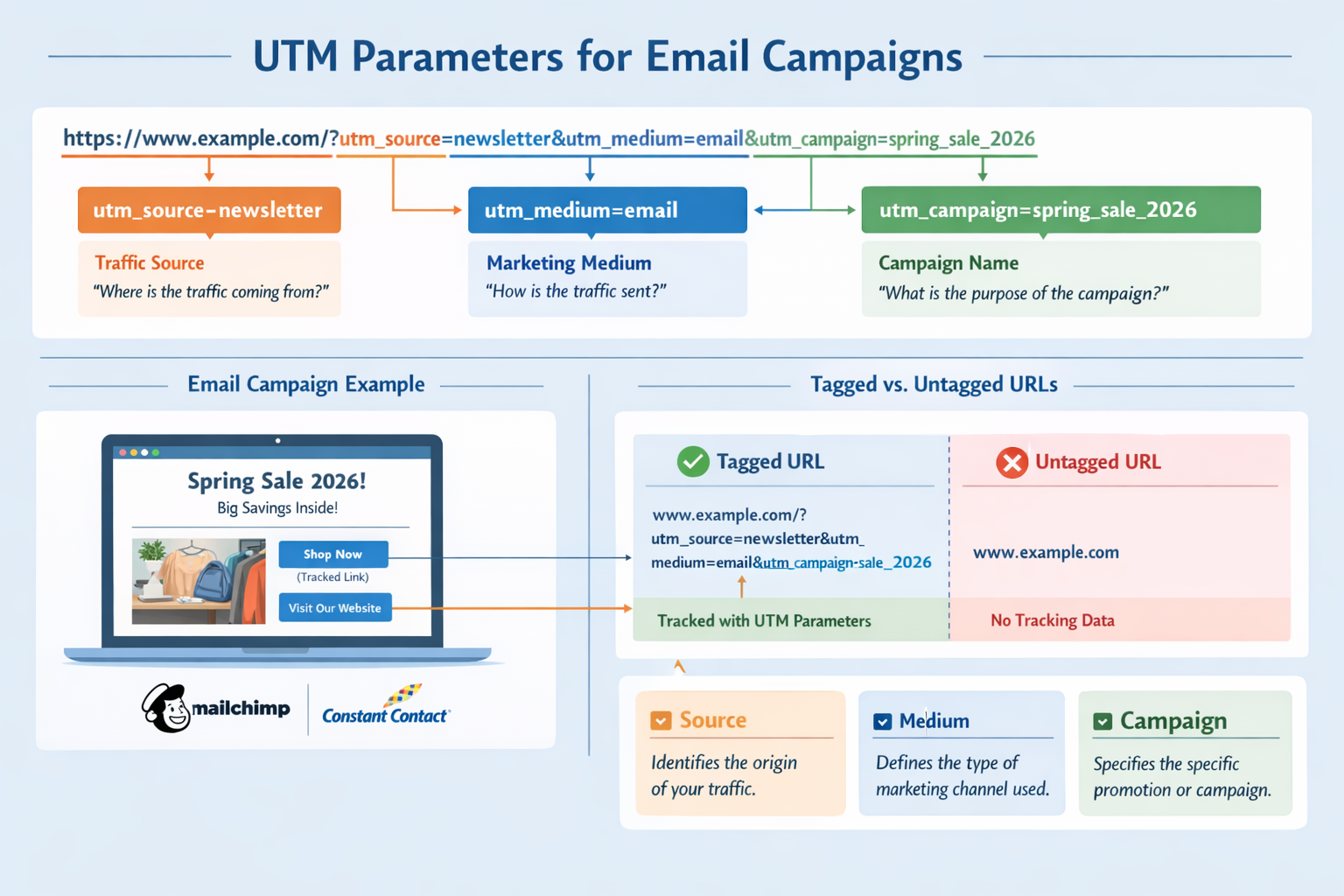
Here's what a tracked link looks like:
https://yourwebsite.com/product?utm_source=newsletter&utm_medium=email&utm_campaign=spring_sale
Let's break down each piece.
The Five UTM Parameters
utm_source tells you the specific source. For email, this might be "newsletter," "welcome_series," or "customer_update."
utm_medium identifies the channel. For email campaigns, this should always be "email."
utm_campaign names the specific campaign. Examples: "spring_sale_2026," "product_launch," or "weekly_tips_march."
utm_content (optional) differentiates similar links in the same email. Use this when you have multiple buttons or links going to the same page.
utm_term (optional) was designed for paid search keywords but rarely matters for email.
The first three parameters matter most. Get those right, and you'll have clean, useful data.
Creating UTM Links Without Losing Your Mind
Don't type these manually.
Google offers a free Campaign URL Builder that does the work for you. Enter your website URL, fill in the campaign details, and it generates the tagged link automatically.
Here's the critical part: be consistent with naming.
If you use "newsletter" one week and "Newsletter" the next, analytics treats them as different sources. Same with "email" versus "Email" versus "e-mail."
Pick a naming convention and stick to it.
Most businesses use lowercase, underscores instead of spaces, and descriptive names that make sense six months later. "spring_promo" tells you nothing in September. "spring_sale_2026_20percent_off" tells you everything.
Create a simple spreadsheet to track your naming conventions. List every campaign, source, and medium you use. This becomes your reference guide so everyone on your team uses the same names.
Setting Up Google Analytics to Track Email Campaign Traffic
Google Analytics 4 is free and shows you exactly how do I find out how much traffic comes from email campaigns once you set it up correctly.
First, make sure GA4 is installed on your website. If you're using an older version of Google Analytics, upgrade now. Universal Analytics stopped collecting data in 2023.
Once GA4 is running, your UTM-tagged links automatically populate reports.
Finding Your Email Traffic in GA4
Navigate to Reports in the left sidebar.
Click Acquisition then Traffic acquisition.
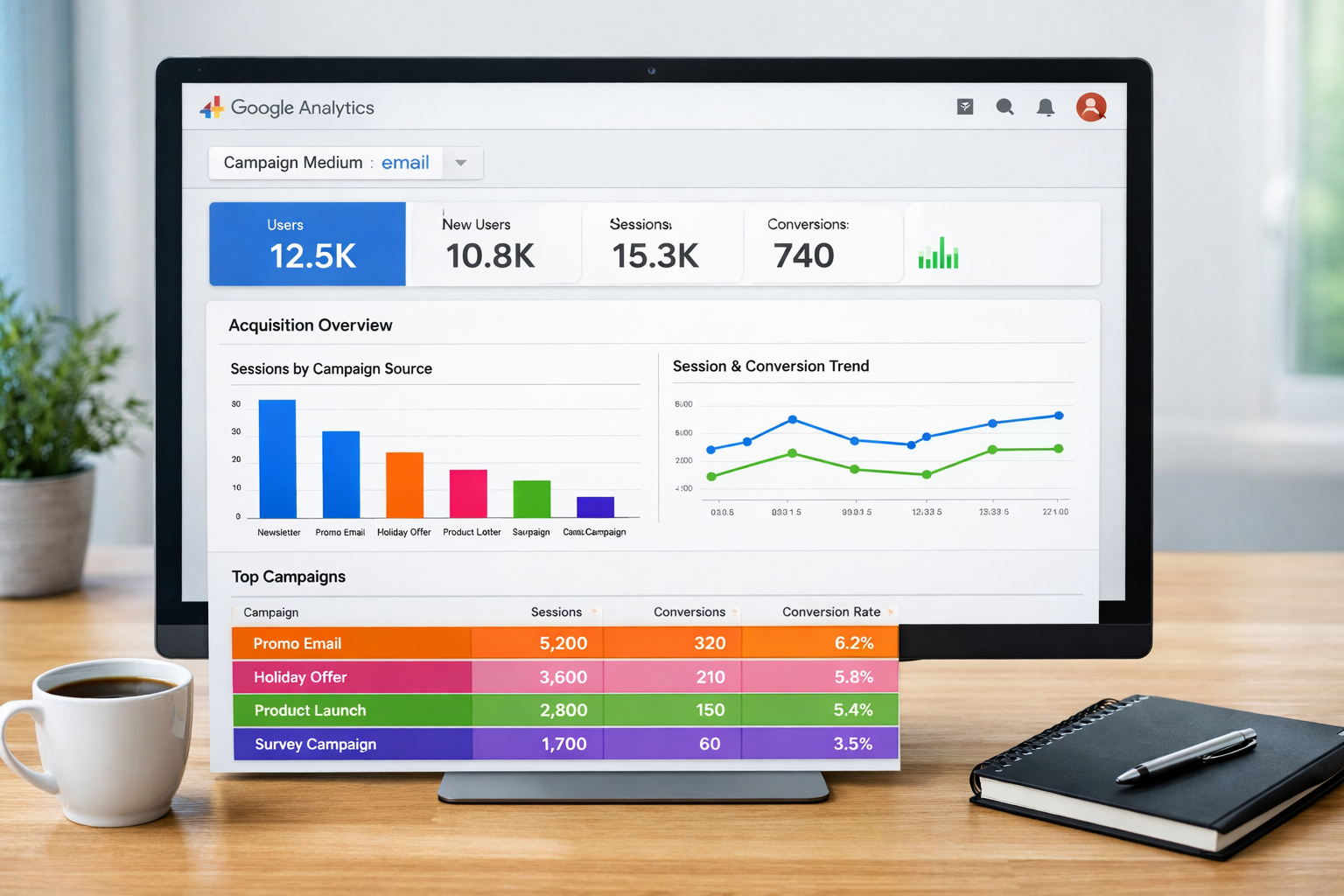
This report shows all your traffic sources. Look for rows where the "Session medium" says "email." These are visitors from your email campaigns.
Click on any row to drill deeper.
You'll see which specific campaigns drove traffic, how many sessions each generated, how long people stayed, and whether they converted. This is where the magic happens.
Creating Custom Reports for Email Performance
GA4's default reports work fine, but custom reports make life easier.
Go to Explore in the left sidebar and create a new exploration. Set up dimensions for "Session source," "Session medium," and "Session campaign." Add metrics like sessions, engaged sessions, conversions, and revenue.
Filter the report to only show rows where medium equals "email."
Save this report and check it weekly. You'll spot trends faster than digging through default reports every time.
The dashboard approach helps you see patterns without getting lost in data.
Using Your Email Platform's Built-In Analytics
Most email platforms show you opens, clicks, and unsubscribes. This data helps, but it's incomplete.
Mailchimp might tell you 500 people clicked your link. Great. But what happened next? Did they buy? Did they read your blog post? Did they immediately leave?
Your email platform can't answer these questions because it can't see what happens on your website.
This is why you need both.
Use your email platform to understand email performance: subject lines, send times, list segments that engage. Use website analytics to understand what happens after the click: conversions, page views, time on site.
Connecting the Dots Between Email and Website Data
Here's where business owners get confused.
Your email platform says 500 clicks. Google Analytics shows 450 sessions from email. The numbers don't match.
This is normal.
Some people click multiple times (counted as one session). Some have ad blockers that prevent tracking. Some click but never fully load your page. The numbers will always differ slightly.
Focus on trends, not exact numbers.
If your email platform shows clicks increasing and GA4 shows email sessions increasing, you're moving in the right direction. If clicks go up but sessions stay flat, something's broken—maybe your UTM tags or your website loading speed.
How Do I Find Out How Much Traffic Comes From Email Campaigns Compared to Other Channels?
Tracking email traffic only matters in context.
500 email visitors sounds great until you realize you got 10,000 from organic search. Or maybe 500 is amazing because you only have 200 email subscribers.
GA4's Traffic Acquisition report shows all channels side by side: organic search, paid ads, social media, direct traffic, referrals, and email.
Look at the percentages, not just raw numbers.
If email drives 15% of your traffic and 30% of your conversions, that's a winning channel. If it drives 30% of traffic but only 5% of conversions, something's wrong with either your emails or your landing pages.
Benchmarking Your Email Performance
Every business is different, but rough benchmarks help.
For most small to medium businesses, email typically drives 5-15% of total website traffic. E-commerce companies with strong email programs might see 20-30%. B2B service businesses might see less.
What matters more than the percentage is the quality.
Track metrics like:
- Engagement rate: How long do email visitors stay compared to other sources?
- Conversion rate: Do email visitors convert better or worse than average?
- Revenue per session: For e-commerce, how much does each email session generate?
These metrics tell you if your email traffic is worth the effort.
Common Tracking Mistakes That Mess Up Your Data
Most tracking problems come from simple mistakes.
Inconsistent naming is the biggest culprit. Using "Newsletter," "newsletter," and "news_letter" creates three separate sources in your reports. Pick one format and stick to it religiously.
Missing UTM parameters on some links but not others creates incomplete data. If you tag your main CTA but forget to tag the footer link, some traffic won't be attributed correctly.
Using the wrong medium confuses your reports. If you tag email campaigns with "utm_medium=social" or "utm_medium=newsletter," your email traffic gets scattered across multiple categories.
Forgetting to tag links at all is surprisingly common. You send a campaign, get traffic, but can't tell where it came from because you forgot the UTM parameters.
Using spaces or special characters in UTM values breaks tracking. Stick to lowercase letters, numbers, hyphens, and underscores.
Creating a Quality Control Process
Before sending any email campaign, check every link.
Click each one and look at the URL in your browser. Do you see the UTM parameters? Are they spelled correctly? Do they match your naming convention?
This takes 30 seconds and prevents hours of frustration later.
Better yet, create email templates with UTM parameters already built in. Update the campaign name for each send, but keep the source and medium consistent.
The signup process for analytics tools should include this quality control step from day one.
Advanced Email Traffic Analysis for Better Results
Once basic tracking works, dig deeper.
Segment by campaign type. Compare newsletters versus promotional emails versus automated sequences. Which type drives more traffic? Which converts better?
Track individual emails within campaigns. If you send a weekly newsletter, tag each week differently: "newsletter_march_week1," "newsletter_march_week2," etc. This shows which topics resonate.
Monitor traffic timing. When do people click your emails? Immediately? Hours later? Days later? This reveals how urgently people engage with different types of content.
Analyze landing page performance. Which pages do email visitors land on most? How do those pages perform? Maybe your homepage converts poorly but your product pages convert great—send people directly to products instead.
Connecting Email Traffic to Revenue
Traffic means nothing without business results.
If you run an e-commerce site, track revenue from email campaigns. GA4 shows this automatically if you've set up e-commerce tracking.
For lead generation businesses, track form submissions, phone calls, or demo requests that originate from email traffic.
Set up goals or conversions in GA4 for these actions. Then filter your reports to show only email traffic and see which campaigns drive the most valuable actions.
This is how you prove email marketing ROI to yourself or stakeholders.
Tools That Make Email Traffic Tracking Easier
You don't need expensive software, but some tools help.
Google Analytics 4 is free and handles all basic tracking needs. If you're just starting out, this is enough.
Google Tag Manager makes adding tracking codes easier if you have multiple tools or complex tracking needs. It's free but has a learning curve.
UTM builder browser extensions let you create tagged links without visiting Google's website every time. Small time-saver that adds up.
Spreadsheet templates for tracking campaign names prevent the inconsistent naming problem. Create one master sheet with every campaign, source, and medium you use.
Email platform integrations with GA4 can automate some tracking, but verify they're working correctly. Don't assume integration means accurate data.
The right tools depend on your business size and complexity. Most small businesses do fine with just GA4 and a simple spreadsheet for naming conventions.
For more resources and tools, check out the partners page.
Creating a Sustainable Email Tracking System
Tracking email traffic isn't a one-time setup. It's an ongoing system.
Build tracking into your workflow. Before any email goes out, someone checks the links. Make this a required step, like proofreading subject lines.
Review data regularly. Set a weekly or monthly time to check your email traffic reports. Look for trends, surprises, and opportunities.
Document your process. Write down your naming conventions, how to create UTM links, and where to find reports in GA4. When someone new joins your team, they need this information.
Test and verify. After sending a campaign, check GA4 within a few hours. Do you see the traffic? Is it tagged correctly? Catch problems early.
Iterate based on data. The whole point of tracking is making better decisions. If certain campaigns drive more traffic or better conversions, do more of that. If others flop, figure out why or stop sending them.
This systematic approach turns email tracking from a confusing chore into a competitive advantage.
Troubleshooting When Email Traffic Doesn't Show Up
Sometimes you send a campaign and see no email traffic in analytics.
Check your UTM parameters first. Click a link from your email and look at the URL in your browser. Are the parameters there? Are they spelled correctly?
Verify GA4 is working. Send yourself a test email with tagged links. Click them and check if you appear in GA4's real-time report. If you don't show up, GA4 isn't installed correctly or is blocked.
Look for the traffic under different sources. Maybe it's there but tagged incorrectly. Check "direct" traffic or other categories to see if your email visitors are being miscategorized.
Wait a bit longer. GA4 usually updates within minutes, but sometimes takes a few hours. If you sent an email at 9 AM and checked at 9:05 AM, try again at 10 AM.
Check your email send time versus analytics time zone. If your analytics is set to Pacific time but you sent at 6 AM Eastern, the traffic might show up on the previous day's report.
Most tracking problems come from simple setup mistakes, not complex technical issues. Work through the checklist methodically and you'll find the problem.
If you need help, the contact page offers support options.
Conclusion
Figuring out how do I find out how much traffic comes from email campaigns doesn't require advanced technical skills or expensive tools.
It requires three things: UTM parameters on your links, Google Analytics set up correctly, and consistent naming conventions.
Start simple. Tag your next email campaign with source, medium, and campaign name. Send it. Check GA4 a few hours later. You'll see your email traffic appear in the reports.
Then build from there.
Add more detailed tracking. Create custom reports. Compare email to other channels. Connect traffic to revenue. Optimize based on what you learn.
The businesses that succeed with email marketing aren't necessarily the ones with the biggest lists or fanciest designs. They're the ones who track what works, do more of it, and stop wasting time on what doesn't.
Your next step is simple: before you send your next email campaign, add UTM parameters to every link. Check the dashboard a few hours after sending. See what happens.
That's how you stop guessing and start knowing which emails
Other frequently asked questions
- How Do I Check Which Pages People Spend the Most Time On
- How Do I Track Sales From My Google Ads Campaigns
- Will AI Take Over Data Analytics
- How Do I Track Phone Calls or Email Clicks as Conversions
- How Do I Track How Many People Fill Out My Contact Form
- How Do I Track How Many People Watch a Video or Download a Brochure
- How Do I Know Which Pages Lead to the Most Conversions
- How Do I See Where Most People Drop Off During Checkout
- How Do I See Where My Website Visitors Are Coming From
- How Do I See Which Blog Posts Bring Me the Most Visitors
- How Do I Check if My Homepage Is Actually Performing Well
- How Do I Find Out How Long It Takes Someone to Become a Customer
- How Do I Find Out What Paths People Take Before They Buy or Sign Up
- How Do I Measure Which Traffic Source Brings the Most Paying Customers
- How Do I See if Discounts or Offers Increase Sales
- How to See What Visitors Do First When They Land on Your Site